























Keyboard shortcuts you can use in Windows 10 and 11
By
Tech Squared
2y agoen
Source
almart.comKeyboard shortcuts you can use in Windows 10 and 11almart.comTechnology makes work easier, and something as simple as keyboard shortcuts can save you a lot of time. If you have a Windows 10 or 11 computer, then you may find these keyboard shortcuts very handy. Snap Snap allows you to put two to four windows side by side, making it easier to compare documents or do two things at the same time. You can use Snap with these keyboard shortcuts: Windows Key + Left – snaps the current window to the left side of the screen Windows Key + Right – snaps the current window to the right side of the screen Windows Key + Alt + Up (Windows 11 only) – snaps the current window to the top half of the screen Windows Key + Alt + Down (Windows 11 only) – snaps the current window to the bottom half of the screen You can also select a snapped window and press Windows Key + Up/Down to move it to your desired corner of the screen. Taskbar You can also use keyboard shortcuts to navigate the Windows 10 or 11 taskbar. Here are the ones you need to know: Windows Key + T – cycle through opened and pinned apps on the taskbar Windows Key + (number) – open the app pinned to the taskbar in the position indicated by the number. If the app is already running, pressing this shortcut will switch to that app. Windows Key + Shift + (number) – start a new instance of the app pinned to the taskbar in the position indicated by the number, even if one is already open Task View This window management feature allows you to see all of your opened windows and browser tabs so you can quickly return to a specific program, document, or web page. This is particularly useful if you have multiple windows open at once. You can access Task View by clicking on its button on the taskbar or using these keyboard shortcuts: Windows Key + Tab – opens the Task View interface with windows from your current desktop Alt + Tab – switches between open windows and browser tabs on all desktops Ctrl + Alt + Tab – functions similarly to Alt + Tab but the thumbnails stay on the screen even after you release all the keys Virtual Desktop This handy feature enables you to create a new desktop that can display different open windows and apps. You can dedicate virtual desktops for certain functions. For instance, one virtual desktop could be used solely for work and another one for entertainment. You can quickly manage your virtual desktops using the following keyboard shortcuts: Windows Key + Ctrl + D – opens a new virtual desktop Windows Key + Ctrl + F4 – closes the current virtual desktop Windows Key + Ctrl + Left/Right – switches to the virtual desktop on the left or right If you’re looking for more time-saving technology tips or have any questions about how Windows 10 or 11 can help streamline your operations, just give us a call. Our IT experts are more than happy to assist you. Published with permission from TechAdvisory.org. Source.
You might also wanna read

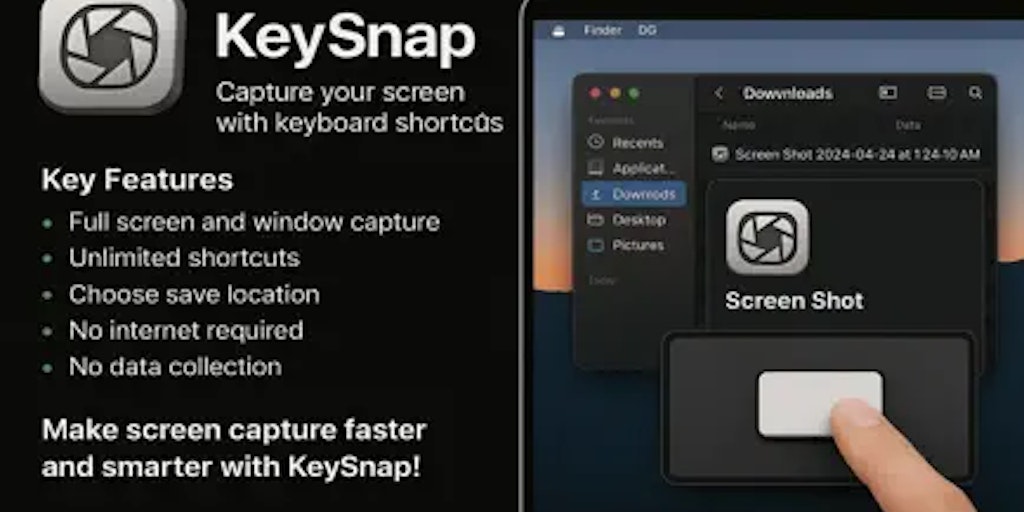
Key Snap: macOS Screenshot App with Keyboard Shortcuts
Key Snap is a macOS application that enables users to take screenshots quickly using keyboard shortcuts, offering features like full-screen
 Product Hunt·1y ago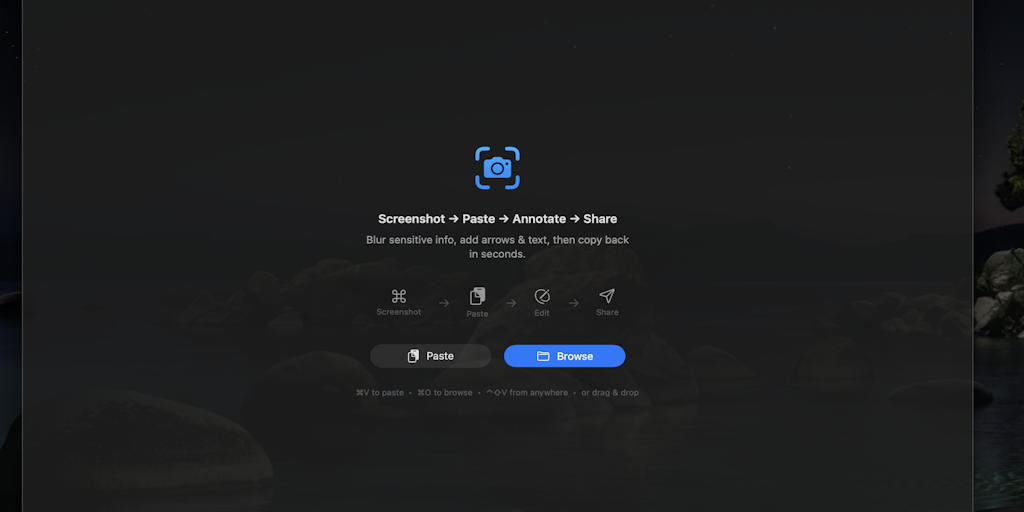
SnapEdit: Lightweight SwiftUI Clipboard Image Editor for macOS
A developer created a lightweight SwiftUI app called SnapEdit that allows users to quickly edit images directly from the clipboard without s
Product Hunt·2mo ago
CSS Scroll Snap
12daysofweb.dev·3y ago
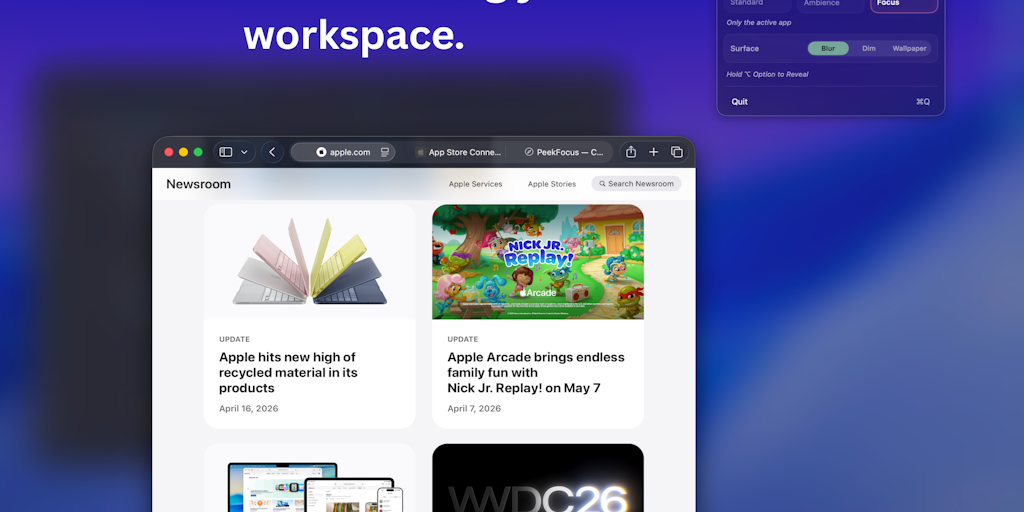
PeekFocus: Mac app that blurs background windows with one keystroke for focused workflow
PeekFocus is a Mac productivity tool that lets users dim or blur everything behind their active window with a single keystroke. It offers th
Product Hunt·2mo ago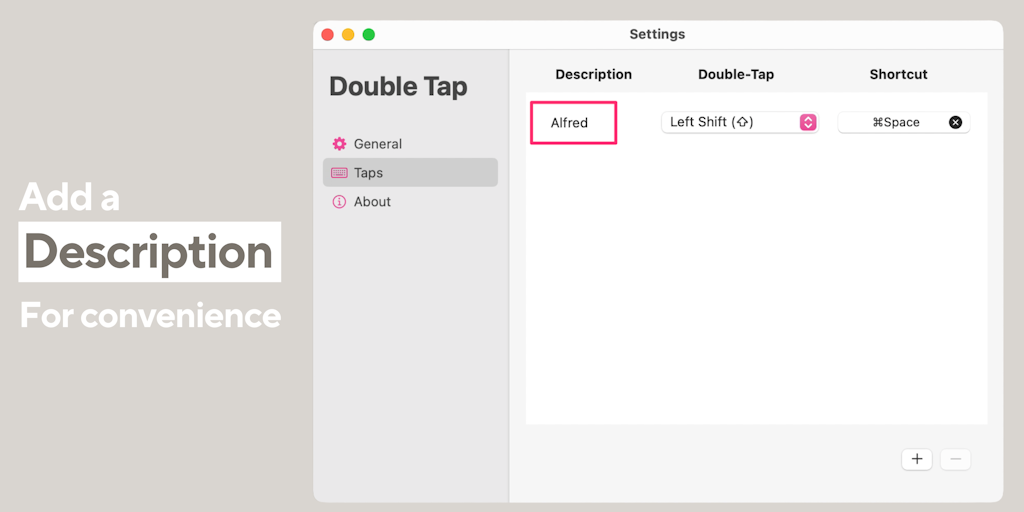
Double Tap: Custom Shortcut Remapping Tool for Productivity
Double Tap is a productivity tool that allows users to remap shortcuts with a double-tap gesture, turning any shortcut into a trigger for cu
Product Hunt·7mo ago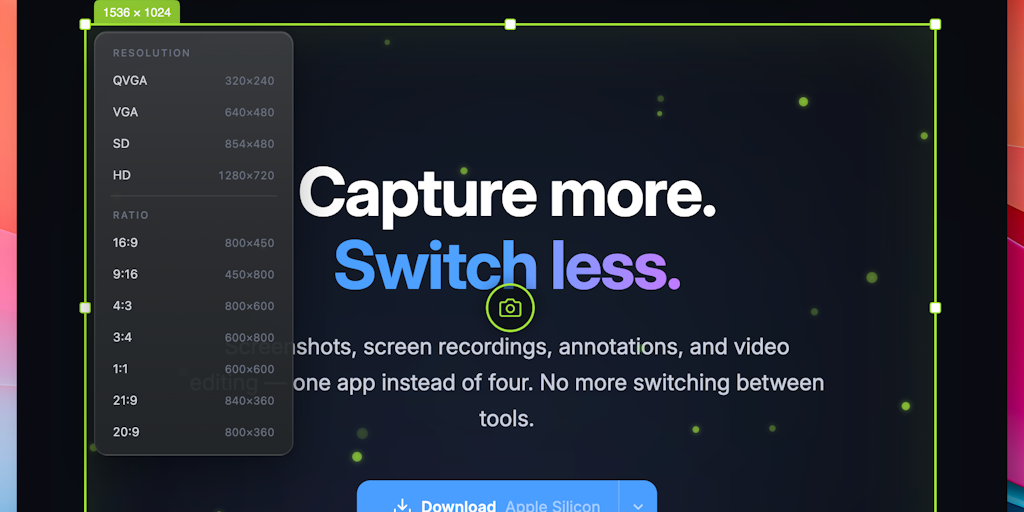
Snapr: All-in-one screen capture, recording, and video editing app for macOS and Windows
Snapr is a unified screen capture and editing app for macOS and Windows that combines screenshots, screen recording, annotation tools, and v
Product Hunt·2mo ago
Comments
Sign in to join the conversation.
No comments yet. Be the first.