
























Visual Intelligence on macOS Golden Gate: How to Use It and What to Skip
By
Gadget Hacks
Source
 Gadget HacksVisual Intelligence on macOS Golden Gate: How to Use It and What to Skipgadgethacks.com
You might also wanna read

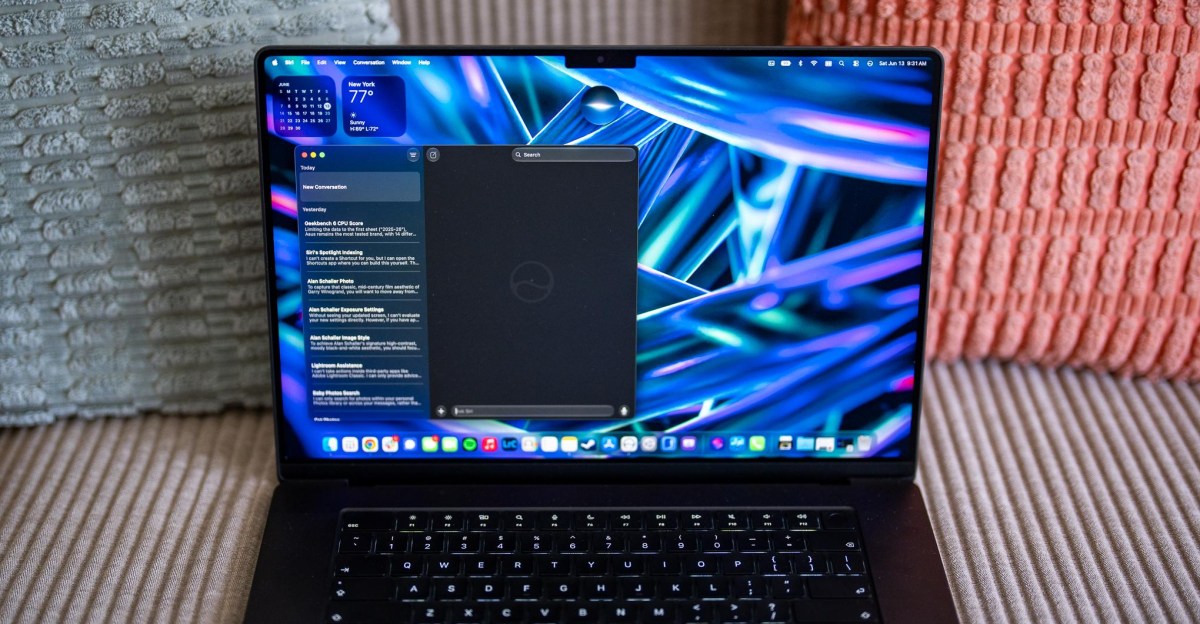
First impressions of Siri AI on macOS 27 Golden Gate developer beta
The article is a first-impressions review of Apple's new Siri AI assistant, currently in early preview on the macOS 27 Golden Gate developer
 theverge.com·21d ago
10 hidden features in macOS 27 Golden Gate that Apple didn't highlight at WWDC26
macOS 27 (Golden Gate) includes numerous hidden features beyond the Apple Intelligence and Siri AI highlights from WWDC26. The article lists
 cultofmac.com·14d ago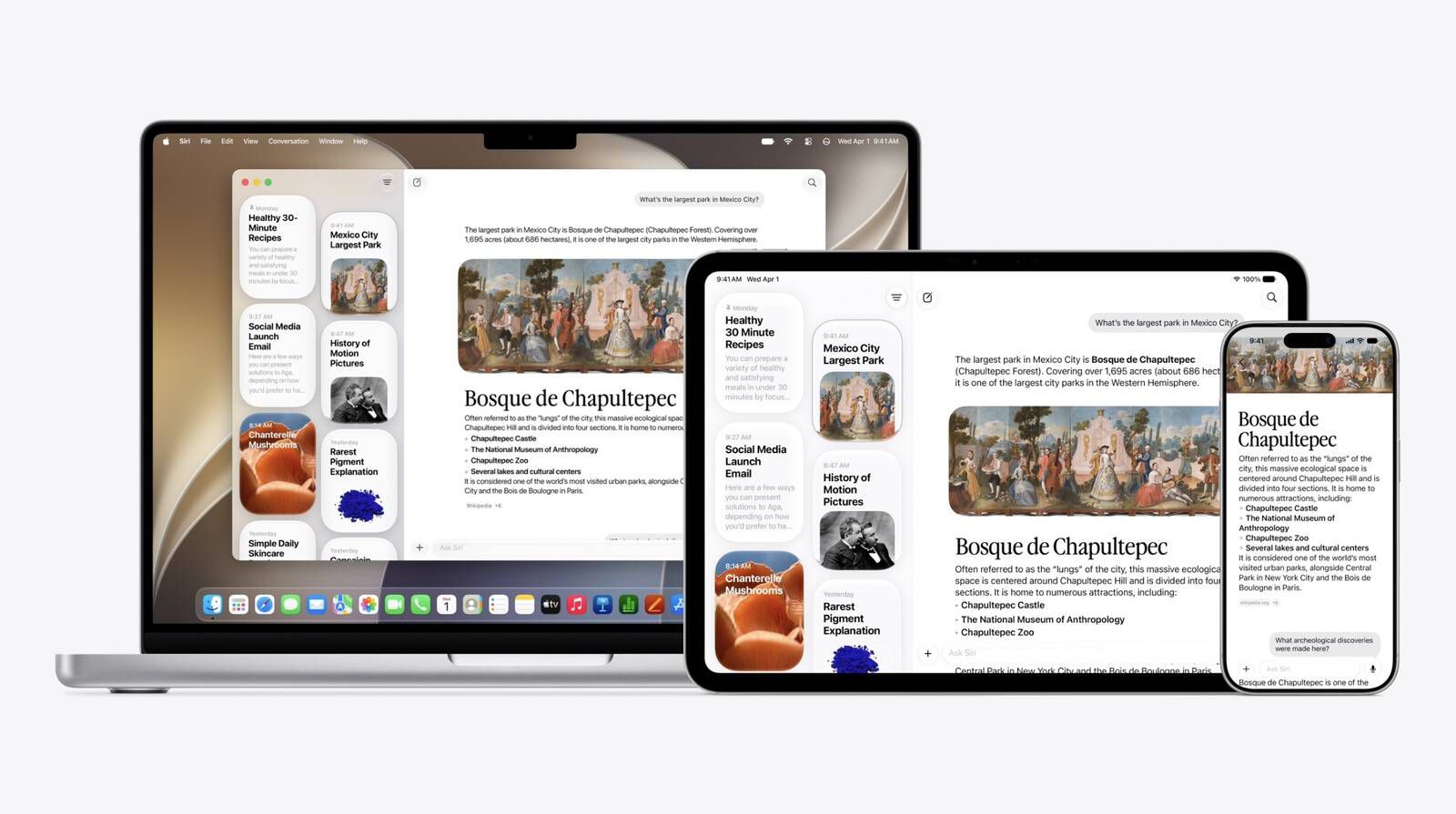
Terminal Workaround Bypasses Siri AI Waitlist on macOS 27 Golden Gate Developer Beta
The article provides a workaround for users who have installed the macOS 27 Golden Gate developer beta and are waiting for Siri AI waitlist
 macrumors.com·23d ago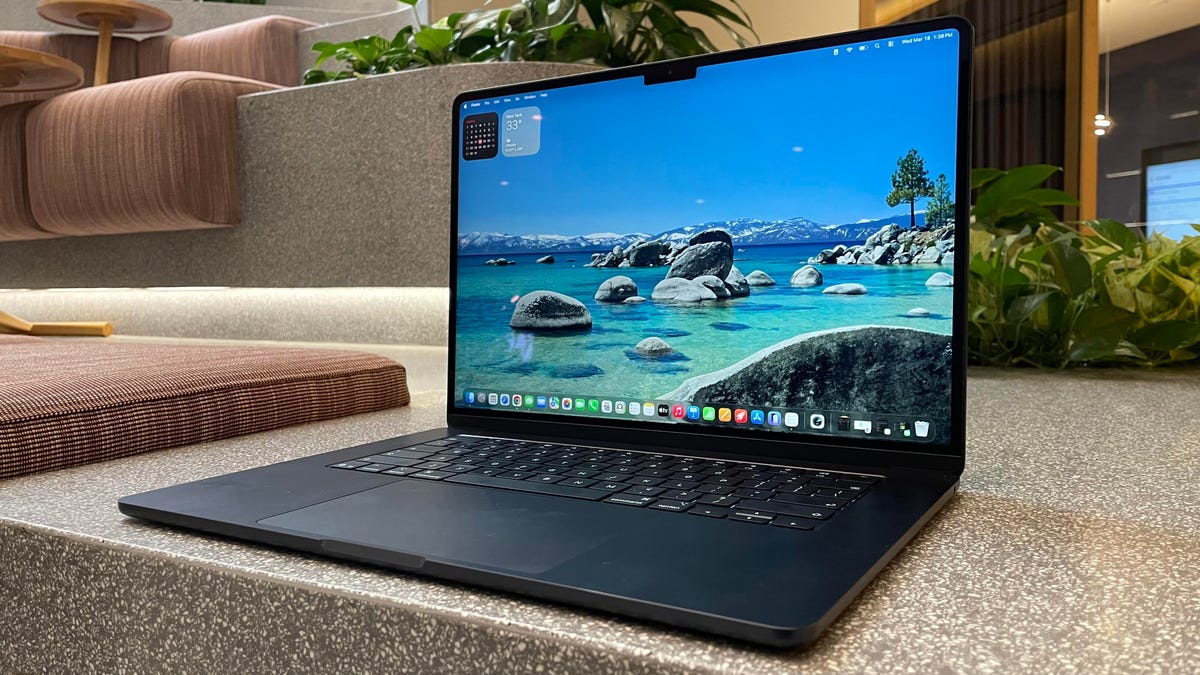
How to download the MacOS 27 developer beta and check model eligibility
Apple announced MacOS 27 "Golden Gate" at WWDC 2026, featuring performance improvements, visual design optimizations, and a redesigned Siri.
 zdnet.com·25d ago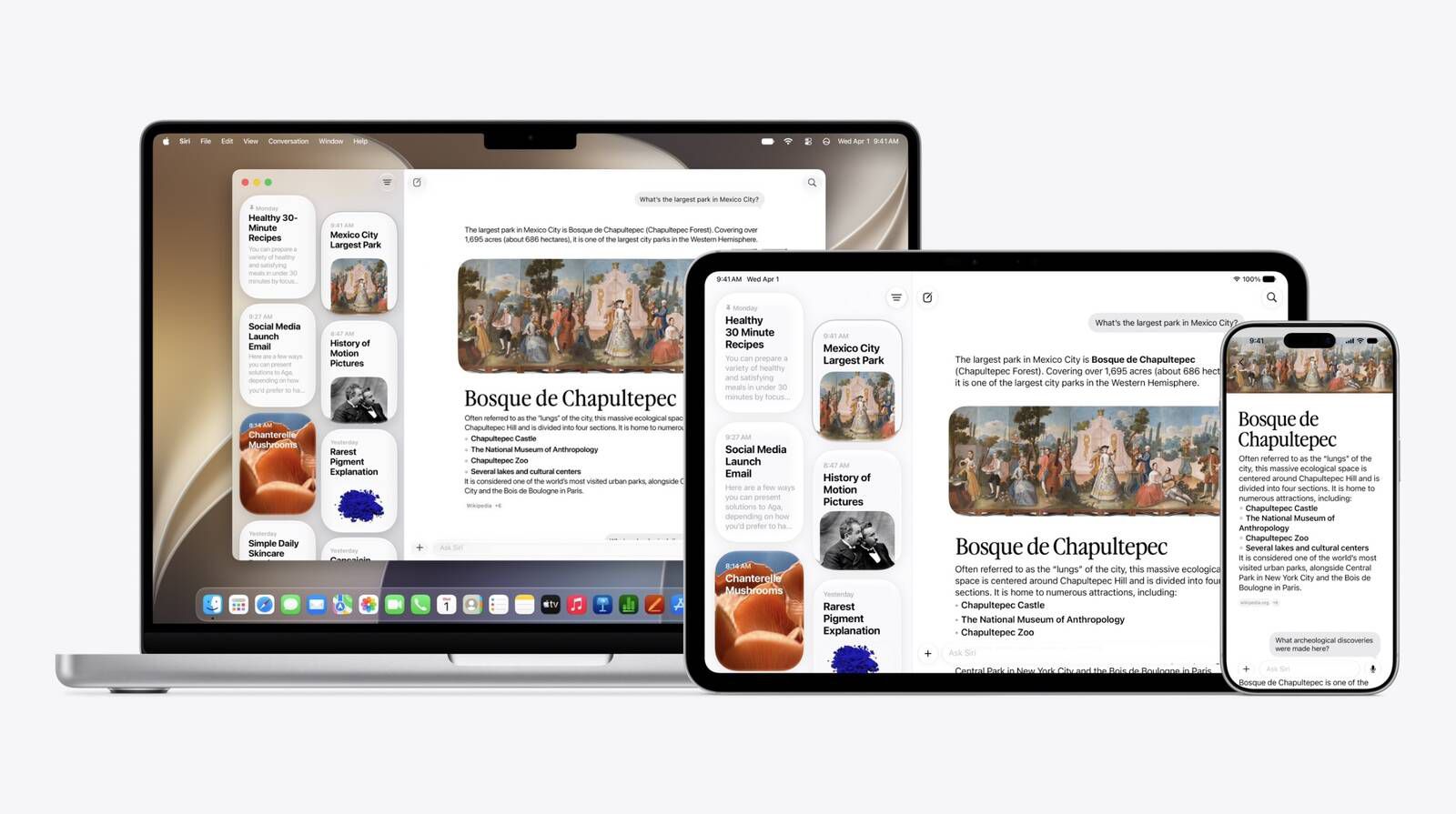
Apple Closes Siri AI Waitlist Bypass in macOS 27 Beta 2
Apple has closed a loophole in macOS 27 Golden Gate beta 2 that previously allowed Mac users to bypass the Siri AI waitlist using a Terminal
macrumors.com·8d ago
macOS 27 Golden Gate Ends Rosetta 2 Support, Dropping Intel App Compatibility Next Year
macOS 27 Golden Gate is the final version of macOS to include full Rosetta 2 support, marking the end of Intel-based Mac hardware support an
macrumors.com·24d ago
Comments
Sign in to join the conversation.
No comments yet. Be the first.