





















How to Enable or Disable AI Actions in Windows 11 File Explorer Context Menu

Sesame, salt, and substance. A flagship bake.
Summary
This guide explains how to enable or disable AI-powered actions in the File Explorer right-click context menu in Windows 11. The AI Actions feature integrates cloud-based artificial intelligence directly into Windows, offering options to summarize or edit files with a single click. The article addresses user concerns about privacy, interface clutter, and feature control, providing step-by-step instructions for toggling these AI features on or off.
Key quotes
· 3 pulledThese new options, designed to summarize or edit files with a click, promise a smarter workflow but can also feel intrusive.
Whether you're concerned about privacy, prefer a clean interface, or don't use the features, you have the power to control them.
The AI Actions feature in File Explorer integrates cloud-based artificial intelligence directly into Windows
You might also wanna read

RemoveWindowsAI: PowerShell Script to Remove AI Features from Windows 11
A GitHub repository provides a PowerShell script called RemoveWindowsAI that allows users to forcibly remove AI features from Windows 11, in
 github.com·5mo ago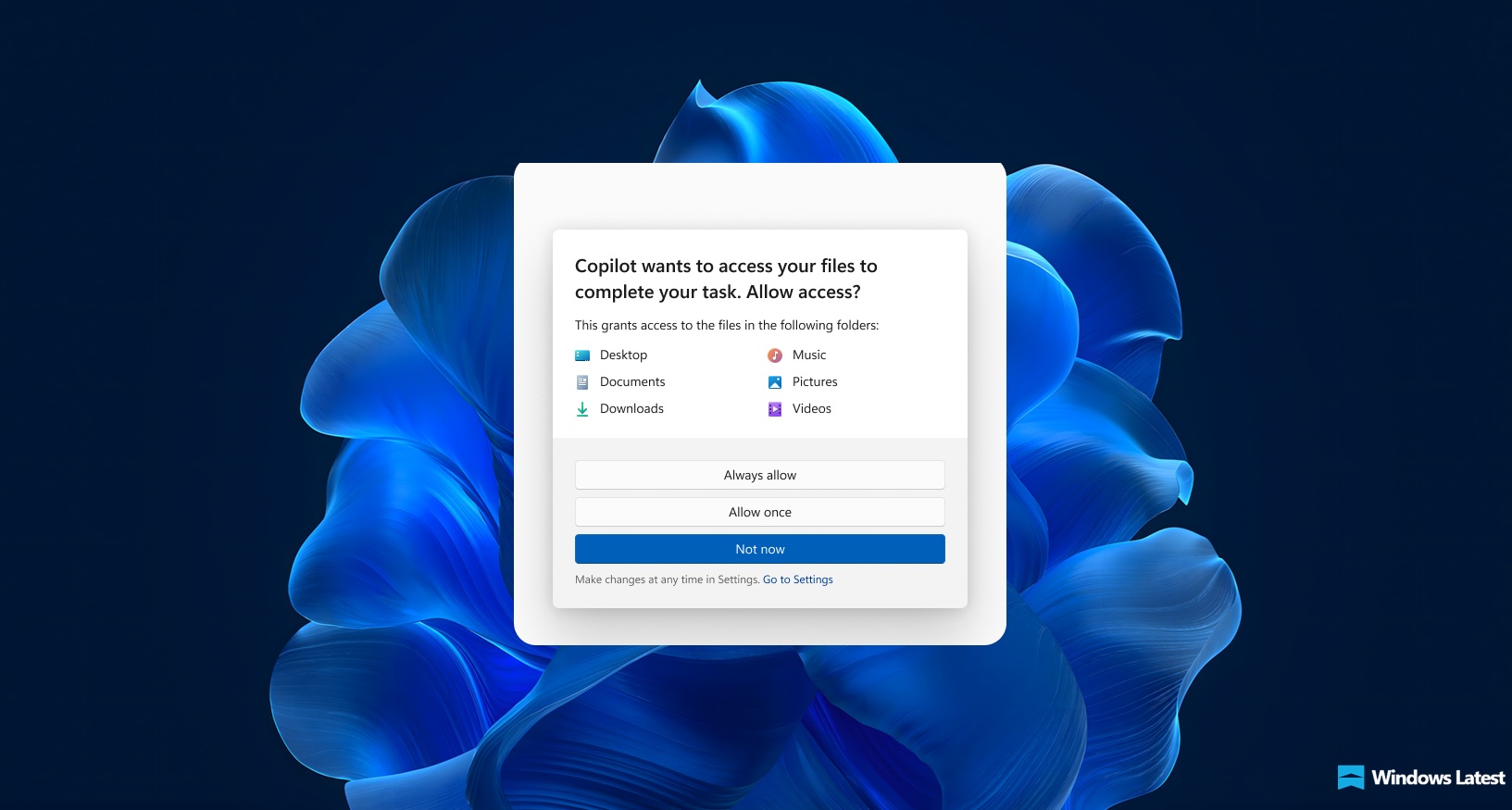
Microsoft Confirms Windows 11 Will Require User Consent for AI Agent File Access
Microsoft has confirmed that Windows 11 will require user consent before AI agents can access personal files stored in six key folders (Desk
 windowslatest.com·5mo ago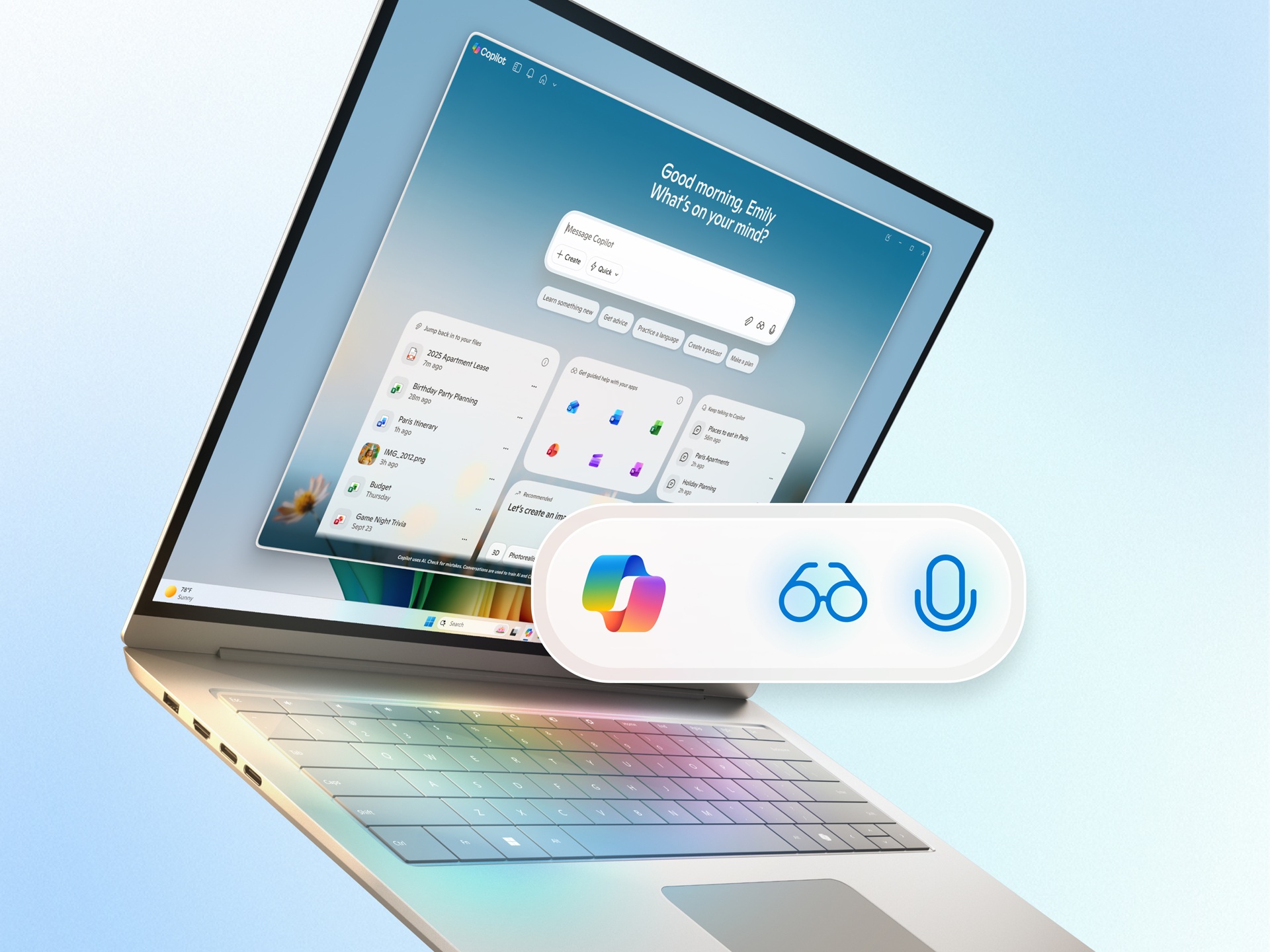
Microsoft Expands AI Capabilities to All Windows 11 PCs Through Copilot Integration
Microsoft is announcing new AI capabilities for Windows 11 that aim to make every PC an 'AI PC' through Copilot integration. The updates foc
 blogs.windows.com·7mo ago
Guide to Optimizing Windows 11 25H2: Removing AI Features and Decluttering the OS
This article provides a comprehensive guide for Windows 11 users to clean up and optimize their operating system after the 25H2 update. It f
 arstechnica.com·6mo ago
Microsoft Tests AI-Powered File Search in Windows 11 Copilot App
Microsoft is testing a Windows 11 update that enables AI-powered file and image search through the Copilot app, allowing users to search usi
 The Verge·9mo ago
Microsoft integrates AI agents into Windows 11 taskbar to create 'agentic OS'
Microsoft is transforming Windows 11 into an 'agentic OS' by integrating AI agents directly into the taskbar. These AI agents will act as as
The Verge·6mo ago